











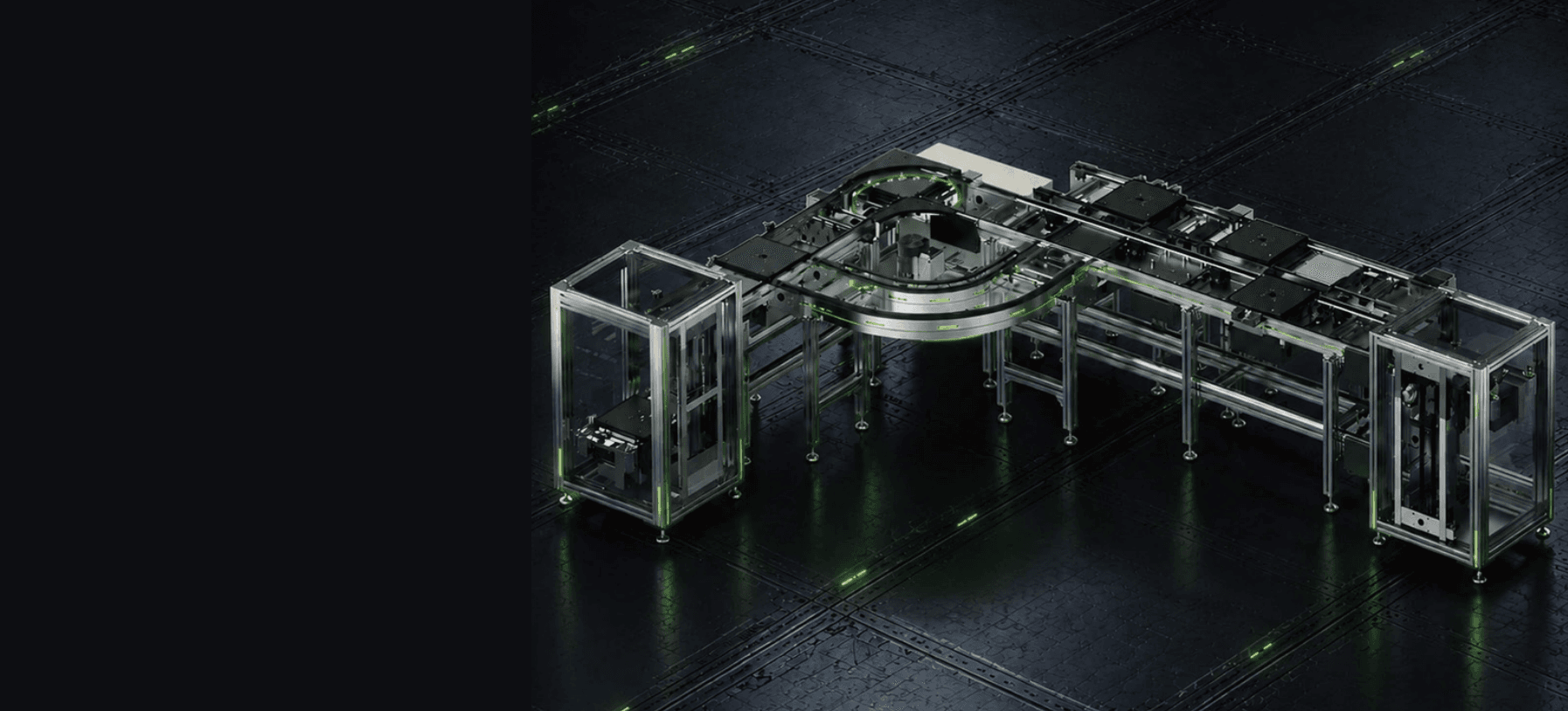
Are you still struggling with conveyor‑equipment selection? Complicated configurations, numerous model options, risks of missing or mis‑specifying components… If this sounds familiar, take a look at this cloud‑based 3D layout tool for industrial conveying systems — Vitrans EnginePro. It is purpose‑built to resolve mechanical engineers’ pain‑points in equipment selection, 3D modelling and drawing generation.
It features a complete built‑in template library for conveyor lines. Product catalogues, design templates and surface‑treatment parameters are available for one‑click lookup. Standard parts such as support legs, brackets, pallets and motors can be called up directly with pre‑loaded model parameters. Input working‑condition load data to finish selection and calculation quickly, removing the hassle of manual formula work.
Below is a detailed walk‑through for this practical engineering tool.
01 Software Access
1.1 Online Access (Recommended)
① Visit the official Vitrans‑conveyor website ② Locate the “Solution System” entry on the homepage and click to launch ③ No installation required. Always running on the latest version directly in‑browser.
1.2 Direct Link
https://vitrans‑conveyor.com/vitrans‑engine‑pro
02 Core Functions & Key Advantages
- Full‑range automation product coverage: Pallet conveyor systems, high‑speed roller conveyors, roller‑chain conveyor systems and more are all available within the library.
- Industry‑specific component library: Comprehensive database including conveyors, aluminum profiles, motors, support legs and other dedicated accessories.
- Intelligent modelling: Exclusive smart‑snap function. Components auto‑match dimensions during assembly without manual parameter calibration, greatly lowering modelling errors.
- One‑click bill‑of‑materials export: After finishing configuration, export JSON layout files, STP 3D solid models and Excel BOM lists to support quotation work.
- End‑to‑end workflow support: Meets requirements for project archiving, 3D preview and equipment procurement, integrating design, file storage, technical review and project execution.
- Powerful team collaboration: Supports project link sharing, member permission management, project renaming, version notes, copy & delete operations for multi‑user teamwork.
- Safe & stable: Auto‑save and session time‑out protection prevent file loss caused by network fluctuation or idle time‑out, securing your design work.
03 Vitrans EnginePro Operation Instructions
Vitrans EnginePro features a streamlined workflow with a low learning curve. Follow these steps:
Step 1: Apply for an account Open the link in your browser; you may switch UI language as needed. New users click “Apply for Account”. Fill in full company name, email address and mobile phone number accurately. Obtain verification‑code via your valid email and submit. Account credentials including initial password will be sent to your submitted mailbox.
Step 2: Log‑in and homepage overview Log‑in with your credentials. The homepage displays thumbnails for all your recent layout projects. Use function buttons below each thumbnail to open projects in new tabs, share links, export JSON files, manage member permissions, rename projects, trace versions, duplicate layouts and delete unused projects.
Step 3: Change password / log‑out Click the account icon in the top‑right corner of the homepage to access account settings for password modification or direct log‑out.
Step 4: Import existing projects Click the import icon on the top‑right corner. Select locally‑saved JSON layout files for import. After import completes, project thumbnails will appear on your homepage ready for further editing.
Step 5: Enter layout‑design workspace ① Click an existing‑project thumbnail or create‑and‑name a new project to open the 3D design canvas. ② Use the mouse wheel to rotate and zoom view. Built‑in editing tools include undo, copy, batch‑copy, alignment and distance measurement. Precise numerical input is supported for component position and angle adjustment. ③ Access product catalogue, equipment list, search bar and coordinate‑property panel for fast component selection and parameter editing. ④ Use the platform‑native smart‑snap feature for automatic component fitting. Hold down the Ctrl key while dragging to disable snapping.
Step 6: Save and export deliverables Click save to store your project to the homepage. Once finalised, one‑click export for JSON layout files, STP 3D models and Excel‑format BOM lists for archiving, previewing and procurement‑quotation purposes.
04 Practical Usage Tips
- New users are advised to get familiar with UI and workflow before formal projects.
- Frequently check viewport display during component setup to avoid missing or misconfigured parts.
- Add brand, model, quantity and remarks before exporting BOM files to simplify follow‑up work.
- For special modules or custom requirements, filter options inside the software or confirm details with the supplier.
Summary
Vitrans EnginePro is a lightweight, intelligent 3D‑layout tool built exclusively for industrial automated conveying applications. It fits production‑line design, equipment selection and project implementation scenarios perfectly. Whether you are an engineer, procurement specialist or manufacturing business owner, it helps you save time, reduce workload and cut human errors.